
Easiest Way to Convert EML to PDF (With Layout & Attachments Intact)
Jun 16, 2026
first-story
Seeking
Connections


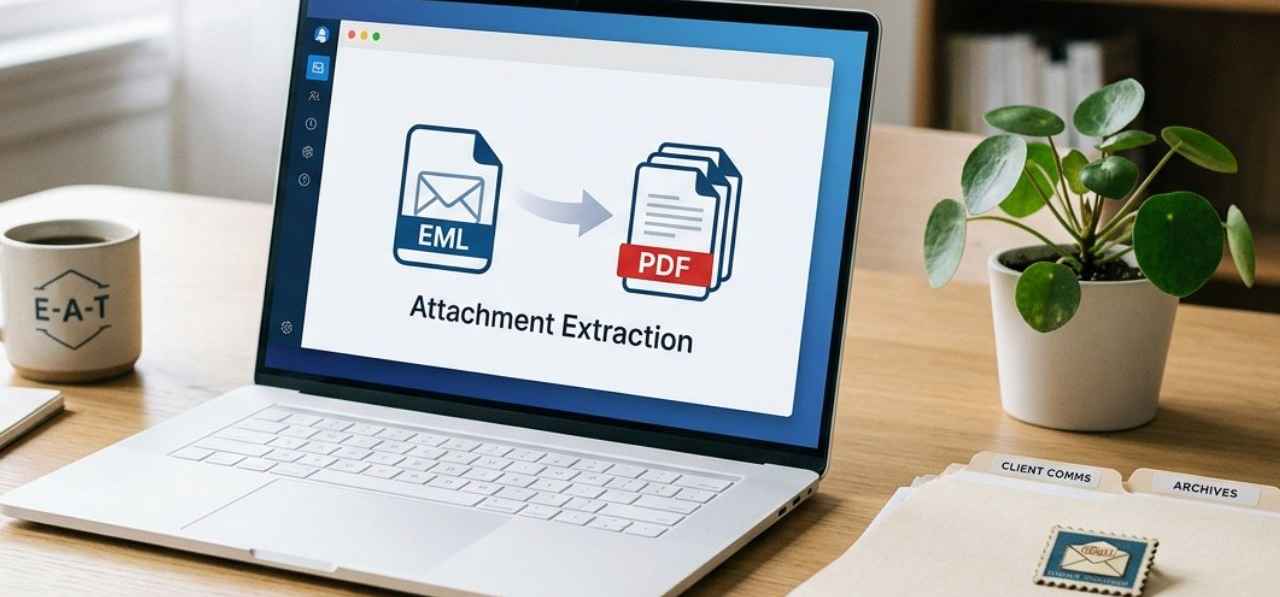
The easiest way to convert EML to PDF is always the method that matches your current file count and security needs. Let us be completely honest here: if you only have one or two files sitting on your desktop, you do not need to buy expensive software or download complex tools. You can change those files into highly readable documents using tools already sitting on your computer. But if you are staring at a massive folder containing thousands of exported messages from an old email client, trying to click through them one by one will quickly drive you crazy.
What Exactly is an EML File?
Before we start changing files from one type to another, we should look at what we are actually working with. An EML file is the standard email storage format used by applications like Thunderbird, Windows Mail, and Apple Mail. It is essentially a plain text file that contains the entire history of an email message. This includes the main body text, HTML formatting, sender and receiver details, date stamps, and any files attached to the message. You can use a best EML Converter if you want to convert large EML files in bulk.
Method 1: The Manual Approach (Free & Built-in)
If you want to know how to convert EML to PDF without spending a dime or installing new programs, your computer’s operating system can handle it natively. Both Windows and macOS feature built-in print engines that can redirect document output away from physical paper and straight into a digital file.
The Windows Approach (No Outlook Required)
If you are working on a PC and need to figure out how to convert EML to PDF without Outlook, you can use the default Mail application or a web browser like Microsoft Edge.
- Right-click your EML file and select Open With.
- Choose Mail or Microsoft Edge from the application list.
- Once the message appears on your screen, press Ctrl + P on your keyboard to open the print menu.
- Change your printer destination to Microsoft Print to PDF.
- Click Print, name your file, and choose a save location on your hard drive.
The Mac Approach
For Apple users, the process to convert EML to PDF on Mac is equally straightforward. The native Apple Mail app handles this file compatibility smoothly without requiring extra configurations.
- Double-click the EML file to view it inside Apple Mail.
- Click on File in the top menu bar and choose Export as PDF.
- Select your destination folder, give the file a clean name, and hit Save.
Here is the thing to remember: this strategy works beautifully for light workloads. If you are handling an occasional message here and there, this manual approach is easily the easiest way to convert EML to PDF files because it requires zero installation. However, it completely falls apart if you have hundreds of documents to process, as you have to open and save every single message manually.
Method 2: Using Microsoft Outlook
Many corporate workspaces rely heavily on Microsoft tools for email records management. If you use Outlook daily, you can use it as a makeshift EML file conversion to PDF system.
Even though Outlook natively prefers its own MSG format, it can open EML files without skipping a beat. To perform this conversion, drag your file directly into your Outlook window or right-click the file and tell your computer to open it using the Outlook desktop application. Once the message occupies your screen, navigate to the top-left corner, click File, and select Print. From the dropdown list of available printers, choose Microsoft Print to PDF.
This path does a solid job of preserving email formatting, keeping fonts and line breaks exactly where the sender intended. The downside is that Outlook does not offer a true native option to convert multiple EML to PDF simultaneously through this print menu. If you highlight twenty files and hit print, you will get slammed with twenty distinct pop-up boxes asking you to type in twenty distinct filenames. It is a slow, tedious way to manage a large mailbox conversion project.
Method 3: Web-Based Tools (Convert EML to PDF Online for Free)
When people need a quick fix, they usually search for a way to convert EML to PDF online for free. The internet is filled with websites that promise to handle this transformation in seconds without making you install a desktop application.
The mechanism behind an online EML to PDF converter is remarkably simple. You open a website in your browser, drag your email files into a designated upload box, and wait while a remote server handles the computational heavy lifting. Within a minute, a download button appears, letting you pull down your freshly created PDF files.
For a casual email containing a recipe or a public article, using an online page is perfectly fine. But for legal files, client contracts, or sensitive personal data, you should rely entirely on an offline EML to PDF converter to protect your information.
The Limits of Free Methods
Let us step back for a moment and look at the real challenges of handling these files. Free systems are great for small tasks, but they introduce major friction when you scale up your workflow. The biggest hurdle is the time required to click through files individually. If you are working on an email migration or building a permanent email backup solution, your backlog might contain thousands of distinct items.
Another major issue is structural accuracy. When you use basic system print drivers to save EML as PDF, the computer often struggles with complex message layouts. Modern emails use complex HTML, background styles, and embedded imagery. A standard print engine might break text blocks awkwardly across page borders, cut off images, or drop critical email header information like the exact timestamp or the bcc list. For professional archiving, you cannot afford to lose that data.
Method 4: Desktop Software for Professional Bulk Processing
When manual clicking becomes impossible, the smartest move is to use a professional EML to PDF conversion utility. Investing in a dedicated best software to convert EML to PDF changes the entire process from a tedious chore into an automated background task.
These programs are built specifically to handle a heavy batch EML to PDF conversion without hogging your computer’s memory or crashing halfway through the job. Instead of opening files one by one, you simply point the software at a folder containing thousands of emails, select your preferences, and let it run.
A high-quality fast EML to PDF conversion tool gives you deep control over the final output. For instance, you can tell the program to combine thousands of individual emails into a single, massive PDF book with a clickable table of contents.
Conclusion & Next Steps
Finding the easiest way to convert EML to PDF comes down to looking at the size of your current project. If you are only managing a handful of loose messages, skip the extra downloads and use the built-in print menus on your computer or open them inside Microsoft Outlook. For business environments handling massive data sets or legal migrations, save yourself the headache and pick up a dedicated desktop conversion program that keeps your layouts clean and your attachments safely organized.
- Technology
- Education
- First Story
- Northern America