
How to Backup and Restore MariaDB Database?
Sep 15, 2026
story
Seeking
Action


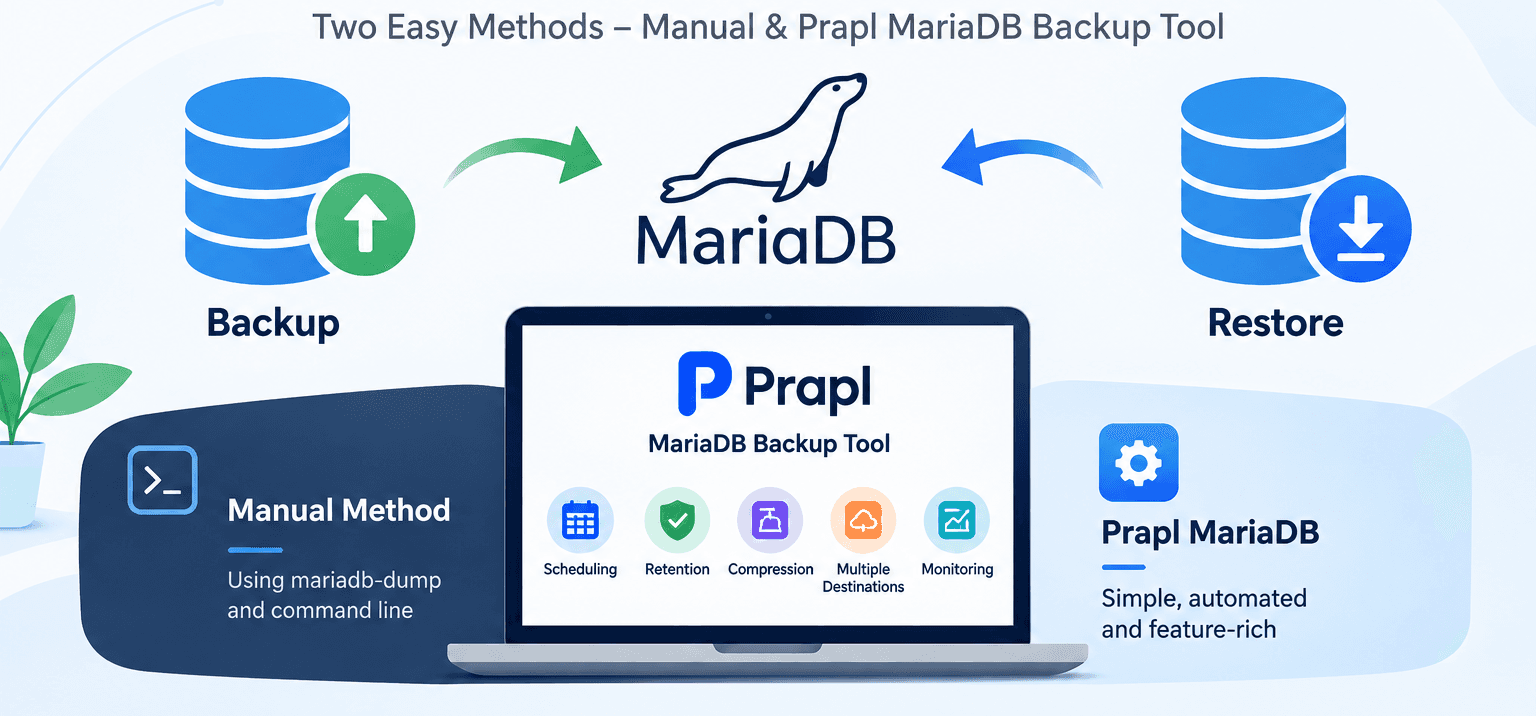
MariaDB is a popular open-source relational database used by websites, applications, and businesses to store important information. As databases grow, having a reliable way to back up and restore data becomes important for daily database management.
There are different ways to backup and restore a MariaDB database. You can use the built-in `mariadb-dump` command for manual backups, or use a dedicated backup tool to simplify the process.
In this blog, we will explain how to backup and restore MariaDB database using two methods: the manual method and Prapl MariaDB Backup Tool.
Why Should You Backup MariaDB Database?
A database backup provides a copy of your MariaDB data that you can use when the original database is lost, damaged, or needs to be recovered. Accidental deletion, software issues, hardware failure, and other unexpected problems can affect database availability.
Regular backups help you keep a recent copy of your data and make recovery easier. You can store backup files on a local drive, NAS, or another supported storage location. For important databases, keeping multiple backup copies and testing restoration is also useful.
Method 1: Backup and Restore MariaDB Database Manually
MariaDB provides the `mariadb-dump` command-line utility for creating logical backups. It exports database structure and data into an SQL file. You can later use the SQL file to restore the database.
This method is suitable for users who are comfortable with command-line tools and want to manage backups manually.
Backup MariaDB Database Manually
- Open Command Prompt or Terminal on the computer where the MariaDB client tools are installed.
- Use the following command:
Bash
```
mariadb-dump -u username -p database_name > backup.sql
```
Replace:
* `username` with your MariaDB username.
* `database_name` with the name of your database.
* `backup.sql` with the desired backup file name.
Step 3. Press Enter and provide your MariaDB password when prompted.
Step 4: Save the Backup File
Restore MariaDB Database Manually
To restore a MariaDB database, you can use the `mariadb` command-line client.
Step 1: Create the Destination Database
```
CREATE DATABASE mydatabase;
```
Step 2: Restore the SQL Backup
Run the following command:
Bash
mariadb -u username -p database_name < backup.sql
```
Bash
```
mariadb -u root -p mydatabase < mydatabase_backup.sql
```
Step 3: Enter the Password
Enter your MariaDB password when prompted.
Step 4: Verify the Database
After the restore completes, connect to MariaDB and check whether the tables and data are available.
You can run:
SQL
```
USE mydatabase;
SHOW TABLES;
```
This helps confirm that the database has been restored.
Limitations of the Manual Method
The manual method is useful for occasional backups, but it may require more effort when managing regular database backups.
* You need to run commands manually or create scripts.
* Scheduling requires additional tools such as Windows Task Scheduler.
* Managing multiple backup files can take time.
* Retention and backup monitoring need additional setup.
* You must manage backup storage and restoration yourself.
Method 2: Backup and Restore MariaDB Database Using Professional Backup utility
Prapl MariaDB Backup Tool provides a graphical way to back up and restore MariaDB databases. Instead of running command-line instructions every time, you can configure the database connection, select a backup destination, and manage backup tasks through the application.
It is useful for users who want to create regular backups, configure schedules, and manage backup copies from one place. The tool also supports retention settings, compression, and multiple storage destinations.
Steps to Backup MariaDB Database Using Prapl
Steps to Take Automate MariaDB Database Backup
1. Run the tool and choose MariaDB as a database engine.
2. Enter your MariaDB database login details to connect it.
3. Select a location to save backup files.
4. Set backup schedule, type, retention policy.
5. After these settings, click on Save & Run Now button to begin the backup process.
The tool will create a backup of the selected MariaDB database and save it to the configured destination.
Check the backup status and history to confirm that the process completed successfully.
Steps to Restore MariaDB Database Using Prapl
Prapl can also be used to restore a MariaDB database from a backup file.
- Open Prapl MariaDB Backup Tool and select the restore option.
- Browse and choose the MariaDB backup file that you want to restore.
- Enter MariaDB Connection Details
- Provide the destination MariaDB server details.
- Select the database where you want to restore the backup.
- Start the Restore ProcessConclusion
Conclusion
Backing up and restoring a MariaDB database is important for keeping your data available when unexpected problems occur. The manual method using `mariadb-dump` is a simple option for users who prefer command-line tools.
If you want to automate backups and manage backup settings through a graphical interface, Prapl MariaDB Backup Tool provides a convenient solution. It supports scheduling, compression, retention, multiple storage destinations, and backup monitoring.
Choose the method that fits your requirements and always test your backups to make sure they can be restored successfully.
- Education
- Northern America