
How to Backup SQL Database and Restore to Another Server?
Aug 1, 2026
story
Seeking
Visibility


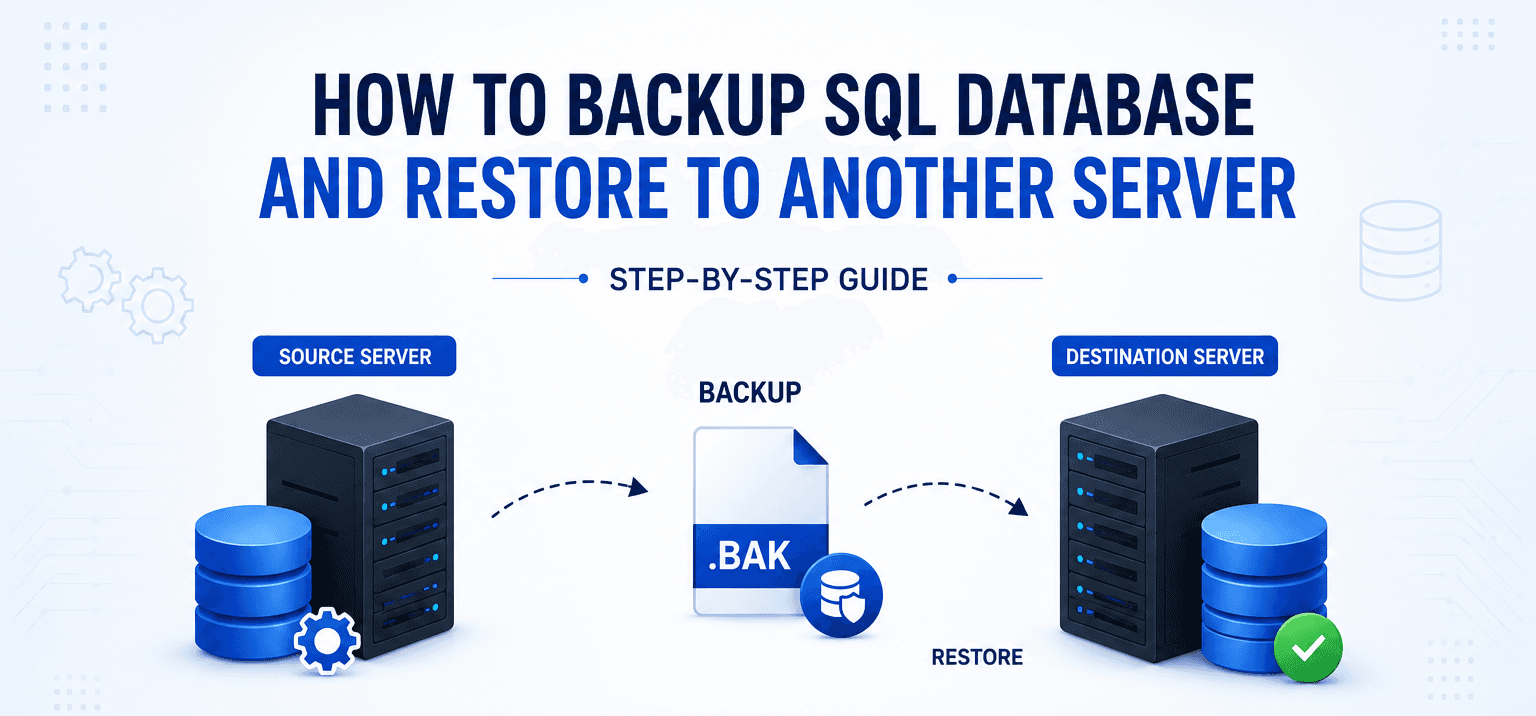
backup and restore sql database to another server
Whether you're migrating to new hardware, creating a disaster recovery environment, upgrading SQL Server, or setting up a testing server, moving a database from one SQL Server instance to another usually begins with a backup and restore operation.
SQL Server provides built-in utilities to perform this task safely. However, problems such as backup corruption, version incompatibility, missing permissions, or interrupted backup creation can prevent a successful restore.
This guide explains the complete process of backing up a SQL Server database and restoring it on another server, along with troubleshooting common issues and recovering damaged backup files.
Why Restore a SQL Database to Another Server?
Database administrators frequently restore SQL databases to different servers for purposes such as:
- Server migration
- Hardware replacement
- Disaster recovery
- Creating development or testing environments
- Database cloning
- SQL Server upgrades
- Data archival
- High availability planning
Regardless of the scenario, having a healthy backup is the most important requirement.
Prerequisites Before Moving a SQL Database
Before creating or restoring a backup, verify the following:
- SQL Server is installed on the destination server.
- Sufficient disk space is available.
- SQL Server service account has access to the backup file.
- Backup file is complete and not corrupted.
- Database users and logins are documented.
- SQL Server versions are compatible.
Destination database name does not conflict with an existing database.
Method 1: Backup SQL Database Using SSMS
- Open SQL Server Management Studio (SSMS) and connect to your SQL Server instance.
- Expand the Databases folder and locate the database you want to back up.
- Right-click the database and select Tasks > Back Up.
- Choose Backup Type as Full and select Disk as the destination.
- Click Add and specify the location where you want to save the .bak file.
- Review the backup settings and click OK to create the backup.
- Wait for the confirmation message indicating that the backup completed successfully.
Method 2: Backup SQL Database Using T-SQL
- Open a new query window in SSMS.
- Execute the BACKUP DATABASE command with the desired database name and backup path.
- Verify that the backup file has been created in the specified location.
BACKUP DATABASE SalesDB
TO DISK='D:\Backup\SalesDB.bak'
WITH INIT,
NAME='Full Backup';
Restore SQL Database to Another Server Using SSMS
- Copy the .bak file from the source server to the destination server.
- Open SSMS and connect to the destination SQL Server instance.
- Right-click Databases and select Restore Database.
- Choose Device and browse to the copied backup file.
- Select the backup set and verify the destination database name.
- Modify the MDF and LDF file locations if required.
- Click OK to start the restore process.
- Wait for the success message and verify that the database is online.
Common Errors During SQL Backup and Restore
- Backup file is corrupted: The .bak file is damaged or incomplete, preventing SQL Server from restoring the database.
- SQL Server version mismatch: A backup created on a newer SQL Server version cannot be restored to an older version.
- Access denied error: SQL Server lacks the necessary permissions to read or write the backup file.
- Database already exists: The destination database already exists, causing the restore operation to fail without the appropriate overwrite option.
- Logical file name mismatch: The logical file names in the backup do not match the specified restore paths or names.
- Insufficient disk space: The destination server does not have enough storage to restore the database files.
- Exclusive access could not be obtained: Active user connections prevent SQL Server from restoring the database.
- Backup set is invalid: SQL Server cannot recognize the backup because it is incomplete, corrupted, or not a valid SQL Server backup.
- Operating system error (Error 5): The restore process fails because the SQL Server service account does not have access to the backup location.
- Tail-log backup required: SQL Server requires a tail-log backup before restoring a database that is still online or in use.
What If the SQL Backup File Is Corrupted?
Sometimes SQL Server refuses to restore a backup because the .bak file itself has become damaged. This can happen due to:
- Unexpected server shutdowns
- Storage device failures
- Bad sectors on disks
- Interrupted backup creation
- Incomplete file transfers
- Virus or ransomware attacks
- File system corruption
In such situations, SQL Server's native restore process typically cannot recover usable data from the corrupted backup.
A specialized backup recovery solution can help extract recoverable database objects when the original backup cannot be restored.
Recommended Solution to Deal with SQL Backup Corruption
If your SQL Server backup file is damaged or fails to restore, SysTools SQL Backup Recovery Tool can be a practical solution. Instead of relying solely on SQL Server's native restore mechanism, the tool is designed to scan corrupted .bak files and recover accessible database components.
Some key capabilities include:
- Recover data from corrupted SQL Server backup (.bak) files.
- Restore tables, views, stored procedures, triggers, functions, and other database objects.
- Support recovery from Full and Differential backup files.
- Preview recoverable database objects before saving.
- Export recovered data directly to a live SQL Server instance or generate SQL scripts.
- Preserve the original database hierarchy and object relationships during recovery.
- Compatible with multiple SQL Server versions.
This approach is particularly useful when the backup cannot be restored due to corruption, helping organizations recover critical data without relying on a valid SQL Server restore operation.
Conclusion
Backing up and restoring a SQL Server database to another server is a standard administrative task for migrations, upgrades, testing, and disaster recovery. SQL Server's built-in tools make the process straightforward when the backup is healthy and compatible with the destination environment. However, issues such as corrupted .bak files, version mismatches, or permission errors can prevent a successful restore. By following best practices—regular backups, integrity verification, and periodic restore testing—you can reduce the risk of failure. In cases where a backup file is damaged and native restore methods are unsuccessful, a specialized solution can help recover valuable database objects and minimize downtime.
- Technology
- Education
- Latin America and the Caribbean