
How to Export EML Emails to Outlook PST in 2026 (Step-by-Step Guide)
Jun 17, 2026
first-story
Seeking
Visibility


Visit MailsDaddy
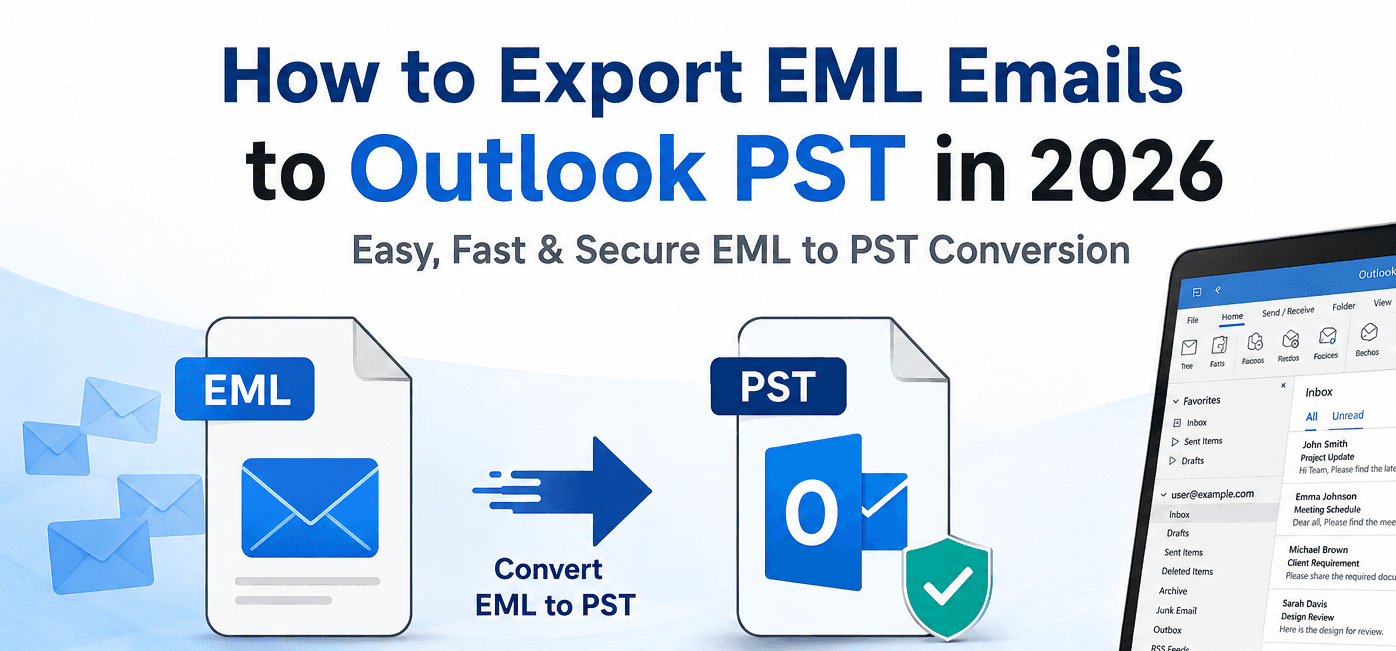
Many users want to switch to Microsoft Outlook from email clients like Mozilla Thunderbird, Outlook Express, and Windows Live Mail. These email clients store their emails in the EML file format, whereas Outlook uses the PST file format. While Outlook offers useful features such as data centralization and enhanced security, it does not natively support EML files. This is why users need to convert EML files into the Outlook PST format.
In this article, we will discuss the importance of migrating EML files to PST, and explore how to perform the migration. Also determine which method is best for our conversion.
What Is an EML and PST File
EML: An EML file stores a single email message, including its headers, body text, and attachments, in plain text. Most email clients like Windows Live Mail, Outlook Express, Thunderbird, Apple Mail, Zoho, and others save messages in EML format.
PST: PST files work differently. Outlook uses a single PST file to store an entire mailbox: folders, subfolders, contacts, calendar items, and thousands of emails bundled together. Because the format is directly supported by Microsoft Outlook.
What are the reasons for EML to PST conversion?
People typically need to convert EML to PST for reasons like:
- Switching from Thunderbird, Apple Mail, or Windows Live Mail to Microsoft Outlook
- Migrating a company's email archive into Outlook or Exchange Server
- Restoring old email backups stored as EML files
- Consolidating emails from multiple clients into one Outlook profile
- Preparing data for legal discovery or compliance audits
Whatever your reason, the good news is that in 2026, there are several reliable paths to get this done, ranging from completely free to fully automated.
Method 1: Convert EML to PST Using Outlook's Drag-and-Drop Trick
This is the simplest free method, and it works well if you only have a small number of EML files to move.
- Open Microsoft Outlook on your computer.
- Create a new folder where you want the imported emails to land.
- Open File Explorer and navigate to the folder containing your EML files.
- Select the EML files you want to import.
- Drag the selected files directly into the Outlook folder you created.
- Outlook will automatically convert and import each EML file as a standard email message.
- Once imported, go to File > Open & Export > Import/Export to save that folder as a new PST file.
This method costs nothing and requires no extra software, but it gets slow and error-prone once you're dealing with hundreds or thousands of files. It also doesn't preserve folder hierarchies if your EML files were organized into subfolders.
Method 2: Use Windows Live Mail as a Bridge
If you happen to have Windows Live Mail installed (or can still install it), it offers a built-in way to import EML files and then export them in a format Outlook can use.
- Install and open Windows Live Mail.
- Go to File > Import Messages and select "Microsoft Windows Live Mail" or "Outlook Express 6" as the source, depending on your EML origin.
- Browse to the folder with your EML files and import them.
- Once imported into Windows Live Mail, go to File > Export Email > Email Messages.
- Choose "Microsoft Exchange" or "Microsoft Outlook" as the destination format.
- Follow the steps to complete the export directly into your Outlook profile.
This workaround was more popular a few years ago, and while it still works on systems that support it, Windows Live Mail is discontinued software, so compatibility with modern Windows versions can be inconsistent. Treat this as a backup option rather than your first choice in 2026.
Method 3: Use a Dedicated EML to PST Converter Tool
For anyone dealing with a large volume of data that needs to stay intact, a dedicated MailsDaddy EML to PST converter tool is the most reliable and time-efficient option. The tool is built specifically to handle batch conversion without the formatting issues or size limits that come with manual methods.
Here's the general workflow most EML to PST converter software follows:
- Download and install a trusted MailsDaddy EML to PST converter tool.
- Launch the software and click "Open Files" and add the files or folders to load your EML files.
- The tool previews the loaded emails.
- Select files and folders according to your requirement.
- Choose "PST" as your export/output format.
- Select a destination folder for the converted PST file.
- Click "Export" and wait for the process to finish.
- Open Outlook, go to File > Open & Export > Open Outlook Data File, and select your newly created PST file to access all your converted emails.
Key Features:
- Batch conversion support: The tool has the ability to convert hundreds or thousands of EML files in one go, rather than one at a time.
- Folder structure preservation: It keeps your original folder and subfolder organization intact in the resulting PST file.
- Attachment integrity: Ensures images, documents, and other attachments transfer without corruption.
- Metadata retention: The tool preserves email headers, timestamps, sender/recipient details, and read/unread status.
- Compatibility with your Outlook version: Confirm the tool supports all Outlook versions, you're running (Microsoft 365, 2021, 2019, 2016, or earlier).
- Free trial or demo mode: Lets you test the conversion on a sample batch before committing to a purchase.
Common Mistakes in Manual EML to PST Conversion and How to Avoid Them
A few missteps come up repeatedly, regardless of which method you choose:
- Skipping a backup of original EML files:- Always keep a copy of your source files until you've fully verified the converted PST works correctly in Outlook.
- Ignoring PST file size limits:- Outlook's ANSI-format PST files (older versions) cap out around 2 GB, while Unicode-format PST files support up to 50 GB, though performance issues often start well before that limit. If you're converting a large archive, plan for splitting the output.
- Not checking Outlook compatibility first:- PST file structure can vary slightly between Outlook versions. Confirm your conversion method explicitly supports your installed version.
- Overlooking duplicate emails:- If you're merging EML files from multiple sources, duplicates are common. Look for a converter with duplicate detection, or plan to clean up afterward using Outlook's built-in "Clean Up" tools.
- Forgetting attachments:- Some manual conversion methods strip or corrupt attachments. Always spot-check a handful of converted emails for attachment integrity before assuming the whole batch worked.
Final Thoughts
Exporting EML emails to Outlook PST doesn't have to be complicated in 2026, whether you're handling a personal email backup or a full company migration. Start with the free drag-and-drop method if your needs are small. For anything larger or more business-critical, investing in a purpose-built EML to PST converter will save you hours of manual work and protect against data loss.
Whichever method you choose, always keep your original EML files backed up until you've fully confirmed the converted PST opens correctly in Outlook.
Also read: How to Convert Bulk EML Files to PST Without Data Loss
- Education
- Technology
- First Story
- Becoming Me
- Behind the Headlines
- Internet Access
- Digital Skills
- South and Central Asia